
How to create an Angular application
About 3 min
How to create an Angular application
Versions
- This course is built on the following versions:
Angular:20.3.0Angular CLI:20.3.2Node.js:22.16.0npm client:10.9.2
- You can find these versions in the
enginespart of theAngular CLIpackage.json
Prerequisites
- Working with the Angular framework requires some prior knowledge:
TypeScript/JavaScriptHTMLCSS
TypeScript
- You will be writing TypeScript when developing your
Angularapp TypeScriptextendsJavaScriptby adding types- In the end,
TypeScripttranscompiles toJavaScript - Knowledge of
TypeScriptis helpful, but not required. You'll learn it on the go!
Node.js & npm client
- Download and install from the Node.js website
Node.js>=22.16.0npm clientis installed withNode.jsby default
Version check
- Check your versions with the following commands:
node -v
npm -v
Angular CLI
- We use the
Angular CLIto- create projects
- generate code
- perform handy development tasks (testing, bundling, deployment)
- To install the
Angular CLI, open a terminal window and run the following command:
npm install -g @angular/cli@20.3.2
- This command installs the @angular/cli npm package globally (
-g) on your system
@angular/cli@20.3.2
- This course is built on version
20.3.2of theAngular CLI - The
@character allows us to install a specific version of a npm package
npm install -g
- Globally means that you can use the installed npm package on any folder on your device (for the
Angular CLIthis is about executing commands to enhance the development process) - You can limit the scope of an npm package by removing the
-gparameter, so you install the package into a specific folder (and subfolders)
IDE
Visual Studio Code
- In this course we will work (as recommended by the Angular team) with Visual Studio Code as editor for our Angular applications
- Download Visual Studio Code (VS Code)
Others
- Other possible IDEs: IntelliJ IDEA, WebStorm, ...
Our first app
- Thanks to the
Angular CLIwe can create a working Angular application with one single command:ng new [app name] - Let's create an Angular application for our news company
- Navigate to a folder where you want to store your Angular application code and execute the following command:
ng new my-news
PowerShell on Windows
- If you are using PowerShell on Windows, you may have to enable script execution with the
Set-ExecutionPolicy RemoteSignedcommand before you can run theng newcommand
Error npm install
- You could get an error during/after the npm install (that is performed by the
ng newcommand) - This has something to do with a wrong node installation.
- You can easily switch between node versions using nvm (windows installer!)
nvm use 22.16.0will for example switch the node version to 22.16.0
The initial creation will ask you some questions. Answer them as described below:
- Which stylesheet format would you like to use? (Use arrow keys)
- Choose
CSS
- Choose
- Do you want to enable Server-Side Rendering (SSR) and Static Site Generation (SSG/Prerendering)?
- Choose
N
- Choose
- Do you want to create a 'zoneless' application without zone.js?
- Choose
Yes
- Choose
- Which AI tools do you want to configure with Angular best practices?
- Choose whatever AI tool you prefer
- Which stylesheet format would you like to use? (Use arrow keys)
My News application
- During the course you will hopefully learn a lot about the Angular framework
- All these techniques will be explained by integrating and using them into the My News application
- This web application will be a news app, where journalists can add articles and visitors can read them, like them, add comments...
- Navigate to the
my-newsfolder - Build and serve the application locally by executing the following command
ng serve --open
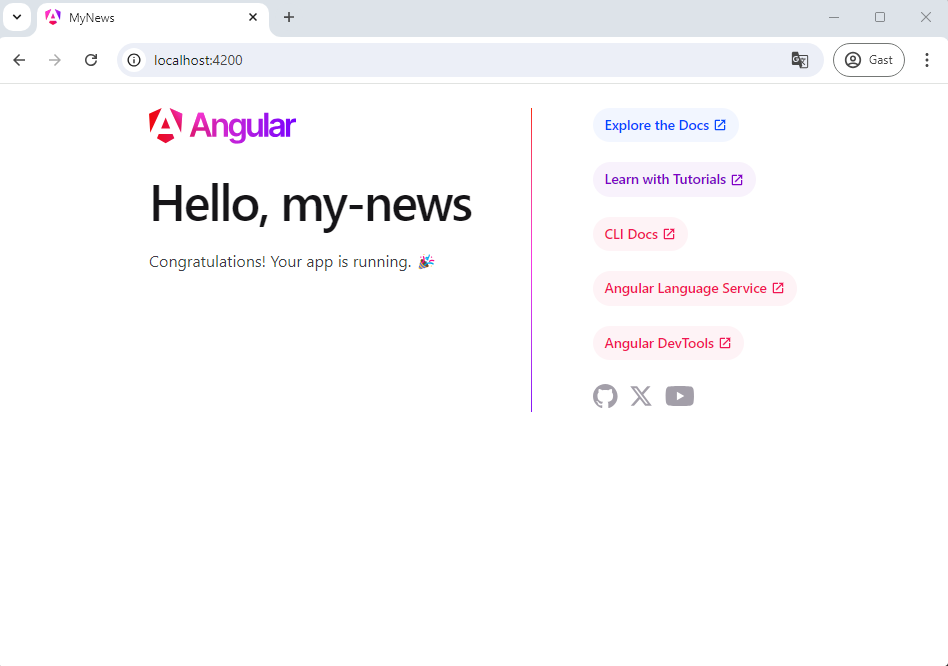
- If all went right, you should see a page similar to the following:
npm start
- In the
package.jsonyou can specify scripts, which will execute one or more commands npm startexecutesng serve- You can add multiple parameters to extend the
npm startscript:--openor-o: automatically opens the browser--port 5878: opens application on port5878
- Full implementation:
"scripts": {
    "ng": "ng",
    "start": "ng serve -o --port 5878",
    "build": "ng build",
    "watch": "ng build --watch --configuration development",
    "test": "ng test"
  },
GitHub
To track all your changes and progress, you can use your GitHub account to create a new repository. This is very handy to revert any changes, ... especially if you start working on your project!