How to show content
About 4 min
How to show content
- A web application consists of content:
- Titles
- Images
- Paragraphs
- Forms
- Lists
- ...
- An Angular application is a collection of
components - An Angular application is a single page application (SPA)
- Each
componentis a part of the web page
Article
- The main purpose of our news app is to show articles to visitors
- Such an article is build with
HTMLandCSSand may contain- A title
- A subtitle
- The body/content
- ...
- In Angular this article will be a
component
Article component
- Create the article component by executing the following command in the
src/appfolder:
ng g c article-component
ng g c article
ng: we're making use of theAngular CLIg: shorthand notation forgeneratec: shorthand notation forcomponentarticle: name of thecomponent-component: addcomponentto filename and classname
component name with multiple words
- When generating a component with a name with multiple words you should separate these words with a dash (
-) - Like:
ng g c article-detail-component
- Generating the article component results in a new
article-componentfolder in thesrc/appfolder containing all the files needed for an Angular component:
| file | description |
|---|---|
article-component.html | HTML that will be rendered when we call the component (required) |
article-component.css | CSS that is used to style this component (required) |
article-component.ts | Code behind this component (required) |
article-component.spec.ts | Unit tests for this component (optional) |
article-component.html
- Contains the
HTMLthat will be rendered. - Works together with
article-component.ts - For now we just write the
HTMLfor our article
<article>
  <h1>Biden for president</h1>
  <h4>A crushing win over D. Trump</h4>
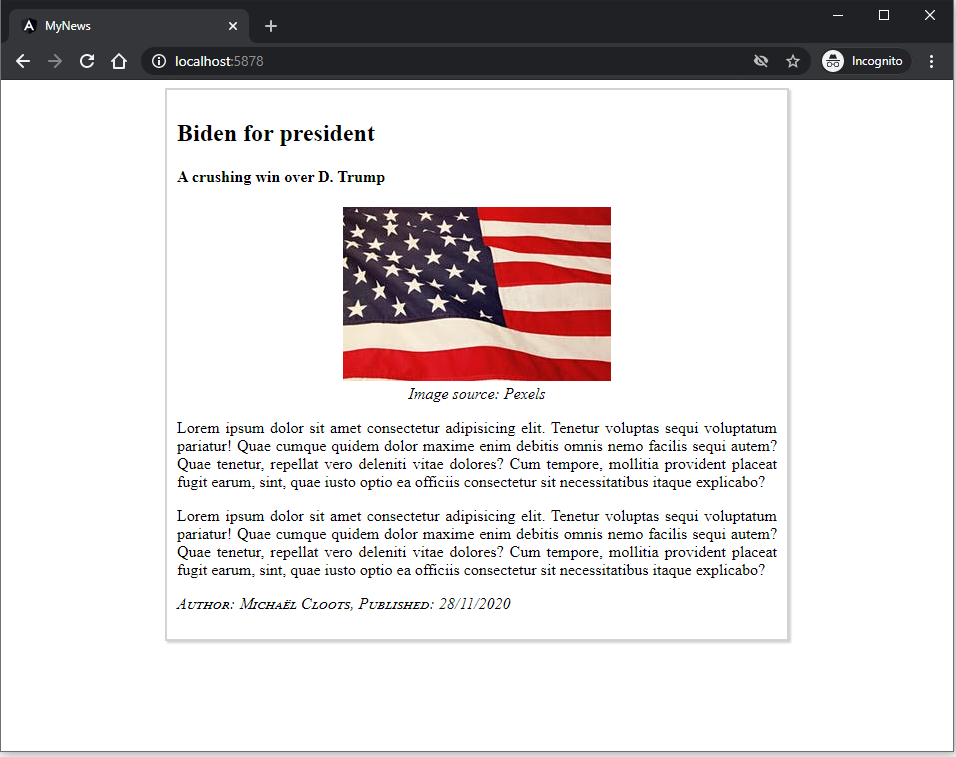
  <figure>
    <img
      src="https://images.pexels.com/photos/1202723/pexels-photo-1202723.jpeg?auto=compress&cs=tinysrgb&dpr=2&h=100&w=134"
      alt="flag America"
    />
    <figcaption>Image source: Pexels</figcaption>
  </figure>
  <p>
    Lorem ipsum dolor sit amet consectetur adipisicing elit. Tenetur voluptas
    sequi voluptatum pariatur! Quae cumque quidem dolor maxime enim debitis
    omnis nemo facilis sequi autem? Quae tenetur, repellat vero deleniti vitae
    dolores? Cum tempore, mollitia provident placeat fugit earum, sint, quae
    iusto optio ea officiis consectetur sit necessitatibus itaque explicabo?
  </p>
  <p>
    Lorem ipsum dolor sit amet consectetur adipisicing elit. Tenetur voluptas
    sequi voluptatum pariatur! Quae cumque quidem dolor maxime enim debitis
    omnis nemo facilis sequi autem? Quae tenetur, repellat vero deleniti vitae
    dolores? Cum tempore, mollitia provident placeat fugit earum, sint, quae
    iusto optio ea officiis consectetur sit necessitatibus itaque explicabo?
  </p>
  <footer>
    <p>Author: Michaël Cloots, Published: 28/11/2020</p>
  </footer>
</article>
article-component.css
- Next we add some basic styling for our article.
- We do this in the
article-component.css:
article {
  border: 2px solid lightgrey;
  box-shadow: 2px 2px 2px lightgrey;
  padding: 10px;
  min-width: 250px;
  max-width: 600px;
  margin: 10px auto;
}

img {
  max-width: 100%;
  height: auto;
}

figure {
  text-align: center;
}

figcaption {
  font-style: italic;
  text-align: center;
}

article p {
  text-align: justify;
}

article footer {
  font-style: italic;
  font-variant: small-caps;
}
Tailwind CSS
- Later on we will integrate Tailwind CSS in our project!
article-component.ts
- This code file is the class file of the
component - Showing content on your web application is nothing more than calling (or routing to)
components - These
componentsareclassesthat will be initialized - The rendering process returns
HTML & CSSto the application, which will be shown on the place where we called thecomponent - The
ArticleComponentclass file looks as follows:
import { Component } from "@angular/core";

@Component({
  selector: "app-article-component",
  imports: [],
  templateUrl: "./article-component.html",
  styleUrls: ["./article-component.css"],
})
export class ArticleComponent {}
| code | description |
|---|---|
import { Component } from '@angular/core'; | JavaScript import that is needed for working with components |
@Component { ... } | Decorator function that specifies the Angular metadata for the component. This tells Angular that the ArticleComponent class is a component |
selector: 'app-article-component' | Element selector for the component. It matches the name of the HTML element that identifies this component. In this case <app-article-component></app-article-component> |
templateUrl: './article-component.html' | The location of the component's template file = HTML |
styleUrls: ['./article-component.css'] | The location of the component's private CSS styles = CSS |
export class ArticleComponent implements OnInit { | Class definition for ArticleComponent. Always export the component class so you can import it elsewhere where you need it |
constructor() {} | Constructor for this class |
Class file
- For now we don't have to code in this class file
- Later on we will have to add code because: - Some business logic needs to be applied - We need to communicate with our
APIto read and post data - ...
Showing our article
- By default an Angular application consists of 1 component =
App - In the
main.tsfile you can see that theAppis loaded when the web application is bootstrapped:bootstrapApplication(App, appConfig).catch((err) => console.error(err));
- In the
app.tsfile you can see that theapp.htmlfile is rendered when thiscomponentis initialized:templateUrl: './app.html'
- The
app.htmlis the starting/home page of our single page web application - Remove all the code and add our recently created
ArticleComponentto show our article
<app-article-component></app-article-component>
- Notice that this gives us an error (NG8001) that you will likely see a lot while developing Angular applications: 'app-article-component' is not a known element
- This error occurs because our
Appcomponent doesn't know anything about theArticleComponent. For this reason we have to import ourArticleComponentby adding it to theimportsarray inapp.ts:
//app.ts
import { Component } from '@angular/core';
import { RouterOutlet } from '@angular/router';
import { ArticleComponent } from "./article/article-component/article-component";

@Component({
  selector: 'app-root',
  imports: [RouterOutlet, ArticleComponent],
  templateUrl: './app.html',
  styleUrl: './app.css'
})
export class AppComponent {
  protected readonly title = signal('my-news');
}
Result:
- You can show the result by running the command
npm start