
Git Branching Strategies
Git Branching Strategies
A branching strategy is a set of defined rules and conventions that dictate how developers use Git branches within a project. It specifies when branches should be created, what they should be named, and how they should be merged back into the main codebase.
Why Branching Strategies Are Necessary
In team environments, relying solely on individual developer decisions for branching leads to chaos, merge conflicts, and unstable code. Strategies are needed for the following reasons:
- Code Stability and Isolation: A strategy ensures that stable, production-ready code (e.g., on the
mainbranch) is isolated from ongoing development. Developers work on features in isolated branches, preventing half-finished or buggy code from disrupting the main codebase. - Predictability and Process: Strategies create a predictable workflow for everyone. When a developer starts a bug fix, they know exactly which branch to create it from, which branch to merge it into, and what naming convention to use.
- Release Management: For projects with scheduled releases, a strategy provides a clear, repeatable process for quality assurance, freezing feature development, applying final fixes, and tagging the official release version.
- Team Alignment: A defined set of rules ensures the entire team is on the same page, reducing communication overhead and making onboarding new developers faster.
In-Depth Explanation: Gitflow
Gitflow is a strictly defined, release-oriented branching model created by Vincent Driessen. It is one of the most structured models and is best suited for projects that have scheduled release cycles or need to maintain support for multiple versions in production (e.g., desktop software, older API versions). Gitflow separates all development work into five distinct types of branches: two "perpetual" branches and three "supporting" branches.
Perpetual (Long-Lived) Branches
These two branches are the core of the strategy and exist indefinitely:
main: Always contains the production-ready, stable code. Every commit on this branch must be a tagged, released version. Code only arrives here via merges fromreleaseorhotfixbranches.develop: Contains the integration line for the next scheduled release. It reflects the latest state of all completed features. This is the primary branch where features are merged.
Supporting (Short-Lived) Branches
These branches are created from the perpetual branches and deleted once their work is complete and merged back.
| Branch Type | Created From | Merged Back Into | Purpose |
|---|---|---|---|
feature | develop | develop | To develop a new, single feature in complete isolation. |
release | develop | main and develop | To prepare a new production release. Fixing bugs and polishing. No new features are allowed here. |
hotfix | main | main and develop | To quickly patch a critical bug found in the live production version. |
Gitflow Setup and Lifecycle (Using SourceTree)
This section details the practical steps for initializing a Gitflow repository and the workflow for a major feature cycle.
1. Setting Up the Gitflow Repository
You don't manually create the five branches; Gitflow tools (like the feature in SourceTree) handle the initialization and cleanup for you.
| Step | Action | Command/SourceTree Action | Screenshot |
|---|---|---|---|
| 1. Initialize Git | Create the basic local repository. | git init (or initialize a new local repo in SourceTree) | 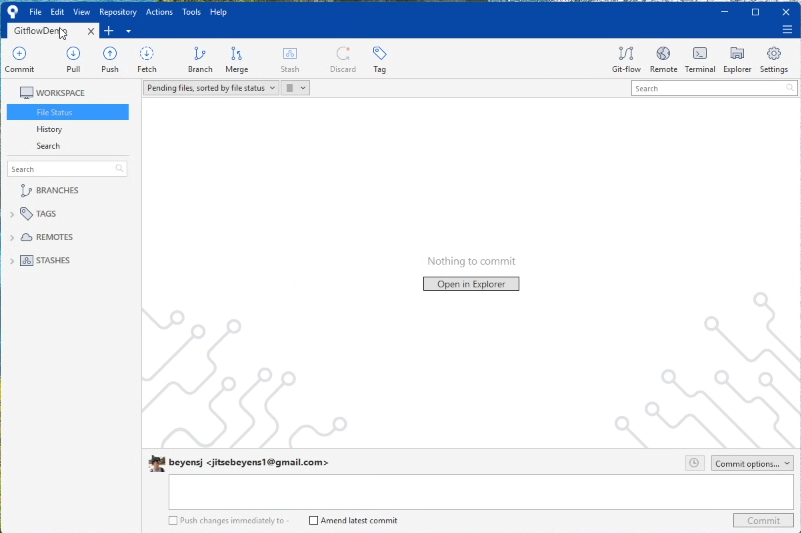 |
| 2. Set Up Gitflow | Run the Gitflow initialization utility. | SourceTree: Click the "Gitflow" button in the top toolbar. | 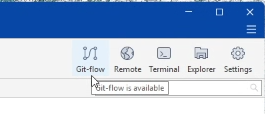 |
| 3. Configure Names | Accept or modify the default branch names. | The setup wizard asks for the names of your Production branch (main) and Development branch (develop), along with prefixes for the supporting branches (e.g., feature/, release/). | 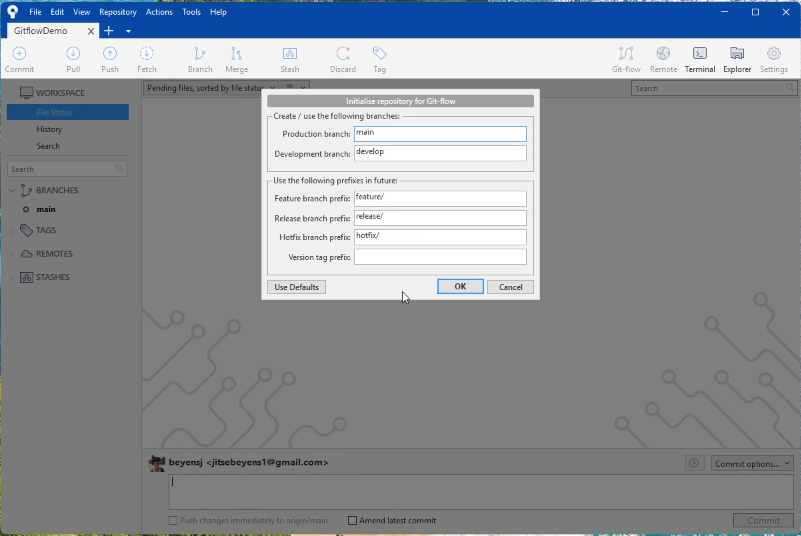 |
| 4. Finish | The tool creates the develop branch and switches your workspace to it. | The main and develop branches are now created. | 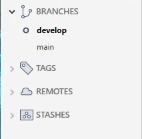 |
2. The Gitflow Lifecycle: Feature Development to Release
This is the standard process for building and deploying a new version of the software.
| Stage | Action | Command/SourceTree Action | Screenshot |
|---|---|---|---|
| 1. Start Feature | Begin work on a new feature from the develop branch. | SourceTree: Click "Gitflow" → "Start New Feature". Name the branch (e.g., feature/user-profile). | 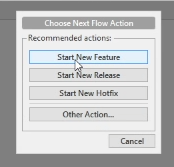 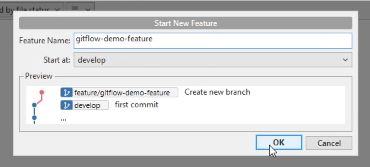 |
| 2. Develop & Commit | Make changes and commit them locally to the new feature branch. | Commit changes in SourceTree. The main and develop branches are unaffected. | 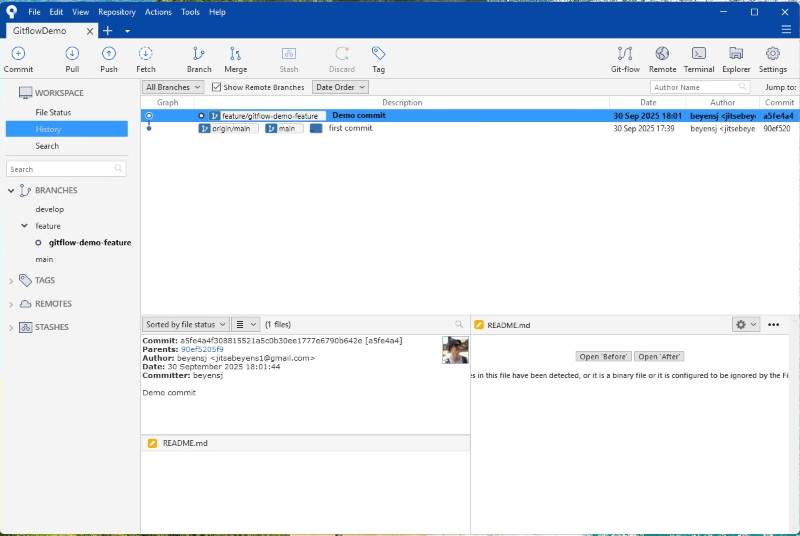 |
| 3. Finish Feature | Merge the feature back into the develop branch. | SourceTree: Click "Gitflow" → "Finish Feature". This merges the branch and deletes the feature branch pointer. | 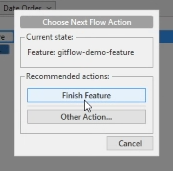 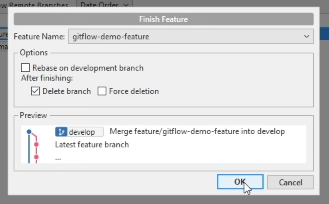 |
| 4. Start Release | When all features for the next version (e.g., v2.0) are ready, freeze develop to create the release branch. | SourceTree: Click "Gitflow" → "Start New Release". Name the release (e.g., release/2.0). | 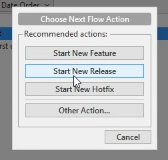 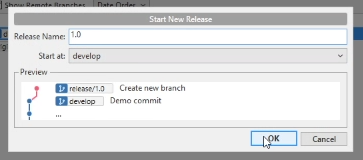 |
| 5. Polish & Fix | Only critical bug fixes and documentation updates are committed to the release/2.0 branch. | Commit final fixes directly to the release/2.0 branch. |  |
| 6. Finish Release | Finalize the release, merging it into main and develop. | SourceTree: Click "Gitflow" → "Finish Release". The tool prompts you to tag main (e.g., v2.0). | 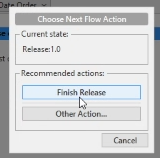 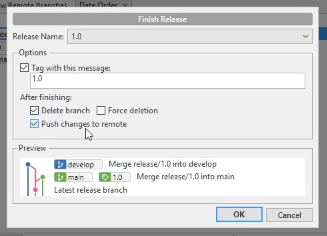  |
3. The Hotfix Lifecycle (Emergency Fix)
This process is used for critical, immediate fixes needed on the live code.
| Stage | Action | Command/SourceTree Action | Screenshot |
|---|---|---|---|
| 1. Start Hotfix | Create a fix branch directly from the main branch (the source of the live bug). | SourceTree: Click "Gitflow" → "Start New Hotfix". Name the fix (e.g., hotfix/1.0.1). | 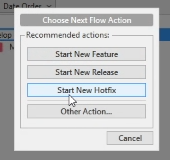 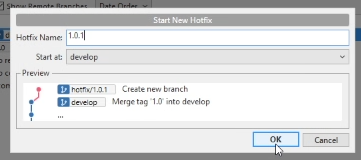 |
| 2. Fix & Commit | Implement the urgent fix and commit the change. | Commit the single, critical fix to the hotfix/1.0.1 branch. |  |
| 3. Finish Hotfix | Finalize the hotfix, merging it into main and develop. | SourceTree: Click "Gitflow" → "Finish Hotfix". The tool tags main (e.g., v1.0.1) and ensures the fix is applied to the next development cycle (develop). | 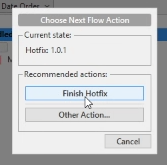 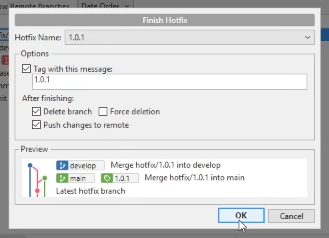 |